NSPanel-Easy
Troubleshooting TFT transfer
[!IMPORTANT]
If you have already installed the version “nspanel-lovelace-ui” from joBr99 on your NSPanel, an intermediate step is necessary - otherwise, it is not possible to install this or any other version.
See [Common Issues TFT Upload when NSPanel Lovelace UI has been installed](/NSPanel-Easy/howto.html)
Common Issues and Troubleshooting
The following is a list of common issues affecting the TFT upload, along with suggested solutions. These issues are not specific to the NSPanel HA Blueprint project but are common to Nextion displays and ESPHome.
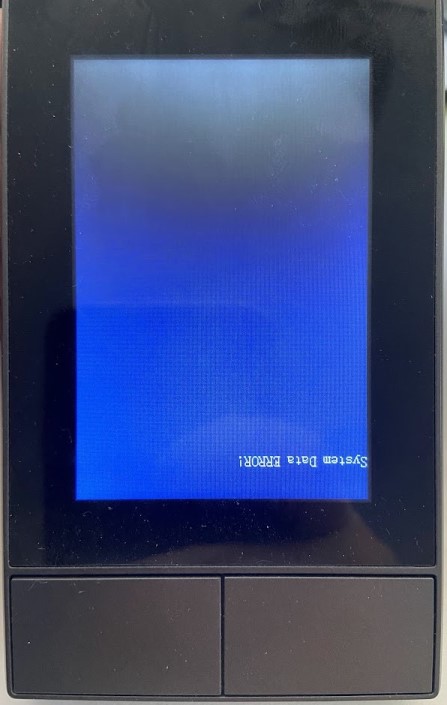
Resolving “System data ERROR!” on Display
Don’t Panic
The “System data ERROR!” message, sometimes displayed upside-down, appears when a TFT upload is incomplete. While it may seem alarming, this message simply indicates that the TFT file on the display is invalid. A successful TFT upload will resolve this issue.
Resolving “Model does not match” on Display
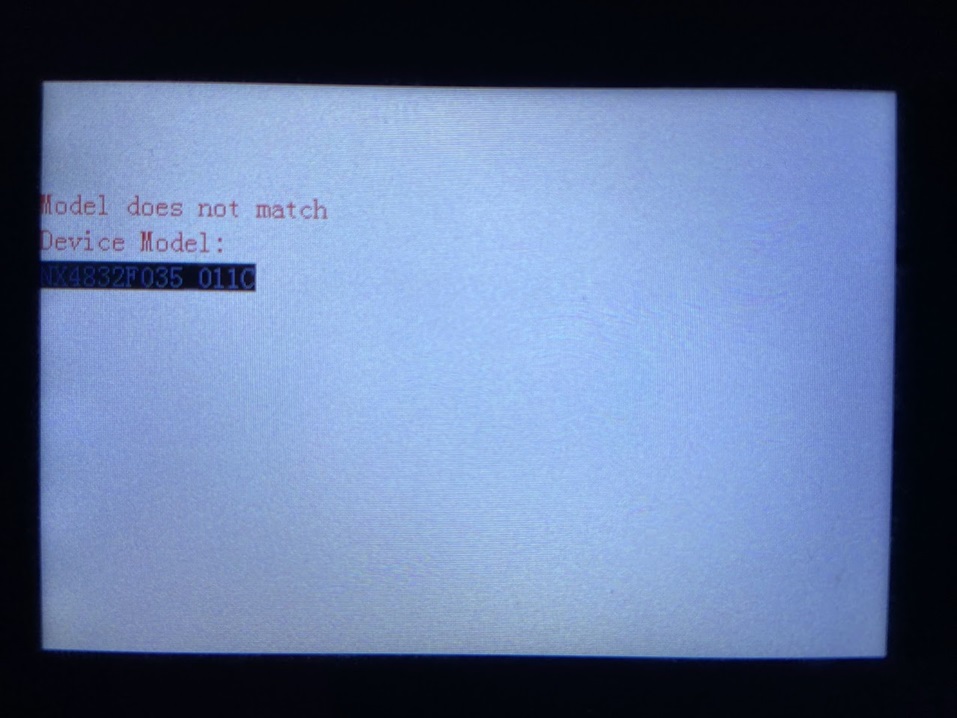
This is one more case where the message sounds more alarming than it actually is. Often, a simple reboot of the panel is enough to restore the previous TFT file. This issue typically arises from a corrupt TFT file or server response issues. For troubleshooting, refer to the following sections:
- Using a Local Source (Home Assistant)
- HTTP Instead of HTTPS - Especially important when using the
arduinoframework. - Check the File Size by Downloading to Your Computer
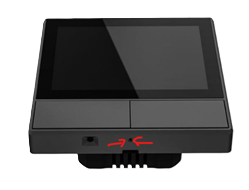
[!TIP] If the TFT transfer has started, your panel might not respond to the reset button on the device’s page in Home Assistant or to holding the hardware button for 15 seconds. In such cases, you can either power cycle your device using the room’s relay on your electrical plate or use a pin to press the hardware restart button in a small hole behind the device.
If using manual IP, make sure you have a DNS server configured
At least one DNS server is required to enable TFT transfer directly from GitHub; otherwise use nextion_update_url.
If you are setting up a manual IP as a customization, please remember to add a valid DNS server for your panel.
Using the nspanel_blank.tft File to Assist
Many TFT upload problems are associated with the Nextion Active Reparse Mode, which is used in some implementations like the original Sonoff firmware or other popular custom firmwares. Installing any TFT file from this project will disable this mode. However, the size of a typical TFT file (7 to 12 Mb) can be challenging for devices with limited memory, such as the ESP32 in your panel, especially over a serial interface.
To facilitate the process, we’ve created the nspanel_blank.tft file.
Although it’s not a fully functional TFT file, it’s sufficient to disable the Reparse Mode and is significantly smaller (less than 300kb).
If you encounter any issues, try installing the nspanel_blank.tft file first. This should make it easier to subsequently install larger, fully functional TFT files.
Enabling TFT upload components
If the components necessary for uploading a TFT file are not available in the device’s page under Settings > Devices & services > ESPHome, and you cannot simply enable the entity on it’s settings, please try removing the device integration from there, restart your Home Assistant instance and then add the device again. It should be automatically detected as a new integration, but if this is not happening, click the Add integration button, select ESPHome, add the device hostname or IP address and follow the steps required.
Wait a Bit Before Starting the TFT Upload
- Issue: The Nextion display might not connect to ESPHome immediately after boot.
- Solution: Wait up to 2 minutes for the boot script to complete.
If you are already using a TFT from this project, the display of ESPHome version and the framework used (
arduinovsesp-idf) is an indication that a communication was established. If you haven’t installed any TFT yet, look for Nextion-related messages on ESPHome logs. - Additional Guidance: Knowing when the device is fully booted and ready to accept the TFT upload can prevent many issues. Observe any changes in the display or logs indicators to ensure the device is ready.
Using a Local Source (Home Assistant)
- Issue: Problems with downloading the TFT from GitHub.
- Solution: Host the TFT file on your Home Assistant and change the
nextion_update_urlaccordingly. - Step-by-Step Guide: Here’s how you can change your
nextion_update_url:- Locate your panel’s ESPHome configuration file.
- Find the line with
nextion_update_url. - Replace the URL with the local address where your TFT file is hosted.
HTTP Instead of HTTPS
- Issue: HTTPS connections may be problematic with ESP, especially when using
arduinoas framework. - Solution: Use HTTP for hosting the TFT file and updating the
nextion_update_url. - Why HTTP?: HTTP can be more stable for these connections. To switch, simply replace ‘https’ with ‘http’ in your URLs and make sure your http server supports non-secure connections.
Remove Customizations
- Issue: Customizations like
bluetooth_proxyandble_trackermay interfere with the upload. - Solution: Temporarily remove any customizations to free up memory.
- How to Remove Customizations: Identify any additional features you’ve added and remove them from your configuration file. Pay special attention to memory-intensive customizations.
Use IP Address Instead of DNS
- Issue: DNS may cause connection problems.
- Solution: Use the IP address of your Home Assistant directly.
- Example: Replace
http://homeassistant.local:8123/local/nspanel_blank.tftwithhttp://192.168.0.100:8123/local/nspanel_blank.tft.
Increase the Upload Timeouts
- Issue: The upload starts normally but aborts partway, often on slow or congested networks, or when the file is served by a busy Home Assistant instance. The ESPHome logs show the HTTP request timing out or the upload watchdog aborting the transfer.
- Solution: Raise
tft_upload_http_timeoutandtft_upload_watchdog_timeoutin your panel’s YAML. The defaults are10sand15s, which are enough for a healthy local network.
substitutions:
  tft_upload_http_timeout: 30s
  tft_upload_watchdog_timeout: 45s
- Additional Guidance: Keep the watchdog timeout above the HTTP timeout, otherwise the watchdog aborts the transfer before a slow request has a chance to complete. These settings require the Upload TFT add-on and have no effect without it.
Check the File Size by Downloading to Your Computer
- Issue: Ensuring the file size matches the GitHub version.
- Solution: Use the same URL you provided to ESPHome to download the file on your computer and compare sizes.
- Verification Steps: Download the file, then right-click and select ‘Properties’ to check the size. Compare this with the size listed on GitHub or from the file you downloaded directly from GitHub.
Power Cycle Your Panel
- Issue: General troubleshooting.
- Solution: Turn off the power supply, wait for a moment, and then power it back on. If your panel is already installed in the wall, you can often power cycle it by switching the relay connected to your panel in your electricity relay’s panel.
- How Long to Wait: It’s recommended to wait at least 30 seconds before turning the power back on. This duration helps ensure that the system resets to a clean state.
[!TIP] If you don’t have easy access to your relay’s panel, an alternative is to use a pin to press the hardware restart button, located in a small hole behind the device. Although this action does not replicate a full power cycle, it might resolve the issue in some cases.
Consider changing the framework
- Issue: You might be facing some situation where the transfer engine used by your framework cannot handle it properly.
- Solution:
Temporarily switch between the frameworksIf you’re using the deprecated Arduino framework, migrate to ESP-IDF framework. - Additional Guidance:
This project supports bothThis project officially supports onlyarduino(ESPHome default) oresp-idf(this project default) frameworks.esp-idfframework as of v4.3.22. Arduino framework has been deprecated. The upload TFT engines have some differences, so using ESP-IDF framework may solve some issues.
[!WARNING] Arduino framework is deprecated as of v4.3.22 and no longer officially supported. If you’re experiencing issues with Arduino framework, please migrate to ESP-IDF.
You can set the framework you want by adding this to your ESPHome yaml:
ESP-IDF (RECOMMENDED)
esp32:
  framework:
    type: esp-idf
Arduino (DEPRECATED - NOT SUPPORTED)
[!WARNING] DEPRECATED: Arduino framework support has been discontinued as of v4.3.22.
esp32:
  framework:
    type: arduino
Flash your panel again
- Issue: Your firmware might be missing some important library, you may be using an outdated version or the ESP may be out of memory.
- Solution: Remove all add-ons and non-essential customization and flash your panel again.
- Step-by-Step Guide:
- Look at your YAML file and comment out all the customization (typically on a section name “My customizations”) and any of the remote files other than
nspanel_esphome.yaml. - Flash your panel with the new cleaner yaml. You can do this over the air/wirelessly, although it is recommended to use serial when changing between frameworks
- Retry the TFT update.
- Add the add-ons and removed customizations back, then flash once more.
- Look at your YAML file and comment out all the customization (typically on a section name “My customizations”) and any of the remote files other than
Try an alternative http service
- Issue: Your current http server may be overloaded.
- Solution: Try another http server installed in your computer. There are many options available for free to run under your local Windows, macOS, or Linux machine.
-
Examples: Just to name some:
Solution Website Supported OSs Pros Cons NGINX nginx.org Linux, Windows, macOS High performance, efficient for static content, good for high concurrency Configuration can be complex for beginners IIS Microsoft Web Platform Windows Integrated with Windows, GUI for setup, good for Windows environments Limited to Windows OS Apache httpd.apache.org Linux, Windows, macOS Highly reliable and flexible, wide OS compatibility, extensive customization Can be less efficient under high load than NGINX XAMPP apachefriends.org Linux, Windows, macOS All-in-one package, easy to install, ideal for beginners Not optimized for high-traffic sites, more suited for development than production
Additional Tips and Resources
After troubleshooting, if issues persist, consult the Issues and please open a new issue for tailored help.
Please share as much info as possible, like:
- Describing (or a picture of) what is in your screen
- Are updating from a previous version of this same project, or coming from another NSPanel customization (which one?) or customizing for the first time a panel with original Sonoff settings?
- Please share the ESPHome logs from when your panel starts to the moment the upload fails.
- Describe what you have already tried.
Important note
Remember, these steps are a guideline and might vary slightly based on your specific setup and previously installed system.