NSPanel-Easy
Guide to Using Different Versions of This Project
Introduction
This guide provides instructions on how to switch between different versions for each component of this project:
Blueprint, ESPHome, and Nextion TFT, allowing users to access development (dev), beta, or previous versions.
[!WARNING] Use non-main versions at your own risk. Only the
main/latest release is officially supported.
[!IMPORTANT] Ensure all three components (Blueprint, ESPHome, TFT) are synchronized at the same version for system stability.
Suggested Update Order
- ESPHome: Start with ESPHome for its straightforward update process.
- TFT: Then proceed with Nextion TFT.
- Blueprint: Finally, update Blueprint, as it requires more manual effort and careful handling.
Finding Available Versions
For available versions and branches, visit: NSPanel Easy Tags.
Take note of the branch (dev, beta, or main) or version name exactly as it is published, as this is case-sensitive.
[!NOTE] Understanding Tags in GitHub Tags on GitHub mark specific versions of a project, akin to bookmarks. They’re created for each new release, allowing easy access to different project stages.
Special Versions
- dev: The development version, containing the latest code but potentially unstable.
- beta: The pre-release version, more stable than
devbut still undergoing final testing. - main: The default branch, typically containing the latest intended code (may be ahead of the latest tagged release).
[!NOTE] When using
devorbeta, report findings in the issues section, clearly stating the version.Please do not report issues related to old released versions.
Instructions
For ESPHome Component
-
Open your device’s YAML config and find the key
ref:, which is underremote_package:in thepackages:area: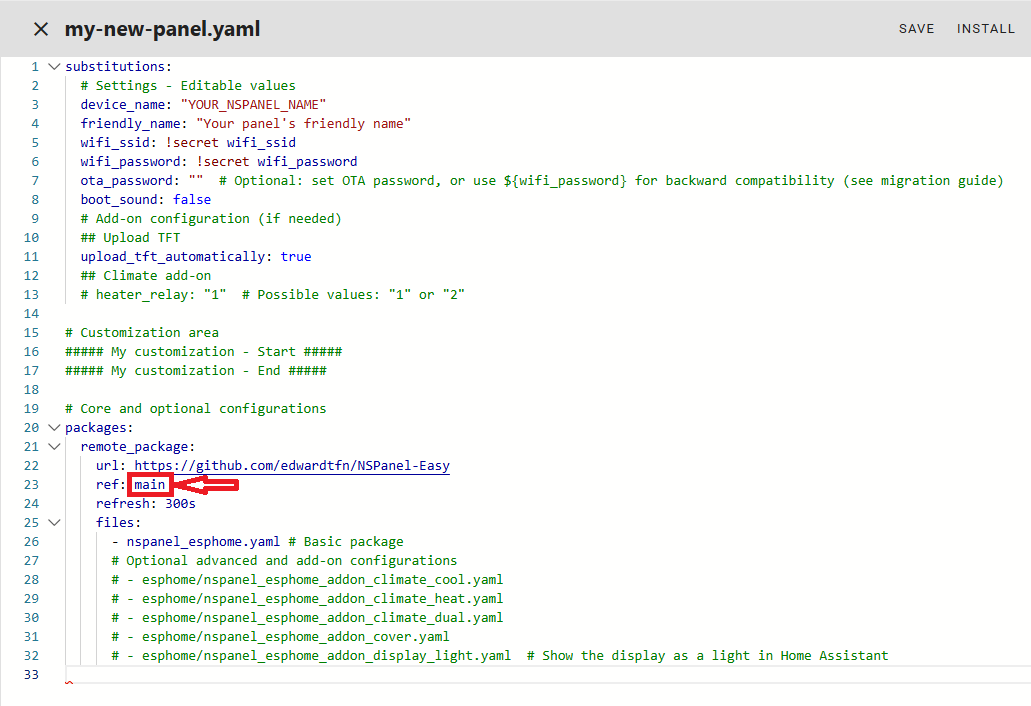
-
Change the value of
ref:to the version you want to install, likeref: devorref: v2026.9.12:packages: remote_package: url: https://github.com/edwardtfn/NSPanel-Easy ref: v2026.9.12 -
Save your settings and then install it.
[!IMPORTANT] Older versions may require
arduinoframework. Please refer to this guide for setting the framework properly: Change framework
[!WARNING] Older versions of the components may not be compatible with the latest ESPHome compiler or Home Assistant.
Ensure you are using a compatible version of Home Assistant and the compiler when working with older project versions to avoid potential issues. For guidance on minimum requirements, see our Version compatibility matrix policy.
For Nextion TFT Component
[!NOTE] The TFT version is automatically matched to your ESPHome version—no manual version selection is required.
- Go to your device’s page under Settings > Devices & services > ESPHome.
- On the Configuration group, press Update TFT display and wait for the upload to complete. The system will automatically find the right TFT file for the ESPHome version you are running.
For Blueprint Component
- Use your preferred code editor to edit the blueprint file under
/config/blueprints/automation/edwardtfn/nspanel_easy_blueprint.yaml. - Go to the GitHub repository and select the branch (
main,betaordev) or the tag (for previous versions) you want to use. - Find the file
nspanel_easy_blueprint.yamlin the root of the branch/tag, then click on it to open the file content visualization. - Click the button “Copy raw file” in the top right area of the code box. This will copy the entire code to the clipboard.
- Go back to your code editor in Home Assistant and replace the entire old code by the one in your clipboard (typically CTRL+A & CTRL+V).
- Go to Developer Tools, select the tab YAML and click the button to reload AUTOMATIONS.
Additional Notes
- Please note that the images provided in this guide might become outdated as the project evolves. It’s always a good idea to refer to the latest version of the project for current details.
- For the most up-to-date information and updates, refer to the project’s documents and check the issues sections on our GitHub repository.