NSPanel-Easy
Blueprint Automation
This article covers the settings in the Blueprint Automation.
The Blueprint Automation is the central configuration element of this solution for the NSPanel.
In principle, the setup of the automation is self-explanatory. The individual elements of the Blueprint are described below.
It is possible to change both the color of the labels and the icons for most of the elements on each screen.
On the blueprint settings, you will be able to select any of the MDI icons supported by Home Assistant, however, your panel will only support the icons available on the NSPanel-Easy Material Design Icons.
For an easier overview, the menu items “Icon Color” and “Label Color” will not be described separately in the following documentation.
Basic settings
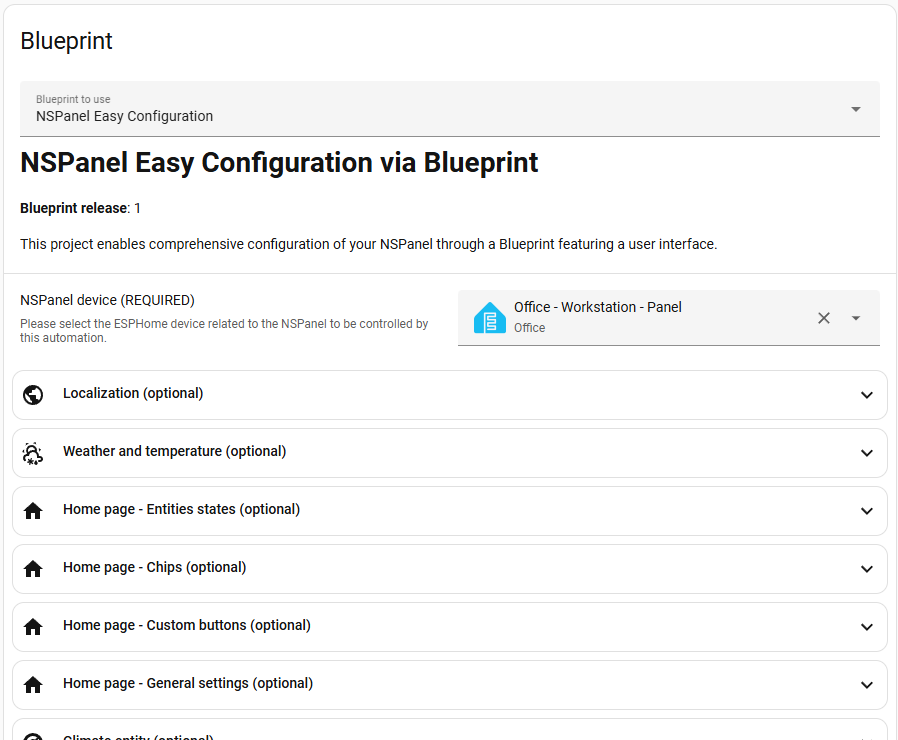
NSPanel device (REQUIRED)
You will be presented with a list of all of your ESPHome ESP32 devices and you must select your panel from the list.
This is technically the only required field, as basic functionality will be available when the Blueprint knows to which panel it has to send the settings.
[!NOTE] You cannot have more than one blueprint-based automation per each panel
Language for NSPanel
Language is no longer configured in the Blueprint. It is now set directly in your ESPHome YAML as a substitution, which means only your chosen language’s strings are compiled into the firmware — saving memory and allowing the panel to display correct date and UI strings even when offline.
To set your language, add the language substitution to your ESPHome YAML:
substitutions:
  language: pt  # Portuguese - see docs/localization.md for all supported codes
For the full list of supported language codes, see Localization.
Date format
Select how you want to see the date displayed on your panel (Home page and weather pages are affected).
Time format
Select how you want to see the time displayed on your panel’s Home page.
Weather and Temperature
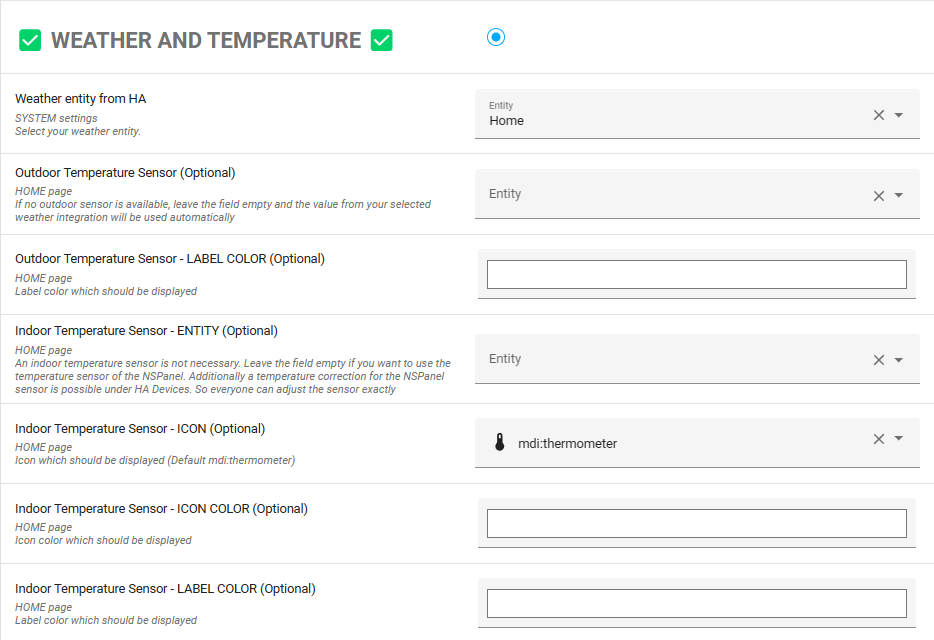
Weather entity from HA
Select a Weather entity to use.
Most of the weather integrations are supported, however some may be able to provide more information than others.
We run all of our tests with “Accuweather”, so the parameters shown on the panel are targetting this integration and will be shown with your integration when available.
Weather pages - Show maximum temperature first
The weather pages show the forecast temperatures as <min> / <max> by default.
Enable this option to show them as <max> / <min>.
Outdoor temperature Sensor (Optional)
Optionally, the value of an outdoor temperature sensor can be used here. If no separate sensor is used, the value of the weather integration will be used.
Indoor Temperature Sensor (Optional)
An indoor temperature sensor is not necessary. Leave the field empty if you want to use the temperature sensor of the NSPanel. If the value of the sensor needs to be corrected, this can be done via the temperature correction for the NSPanel under HA Devices.
Home page - Entities States
| Entity | Description | Example |
|---|---|---|
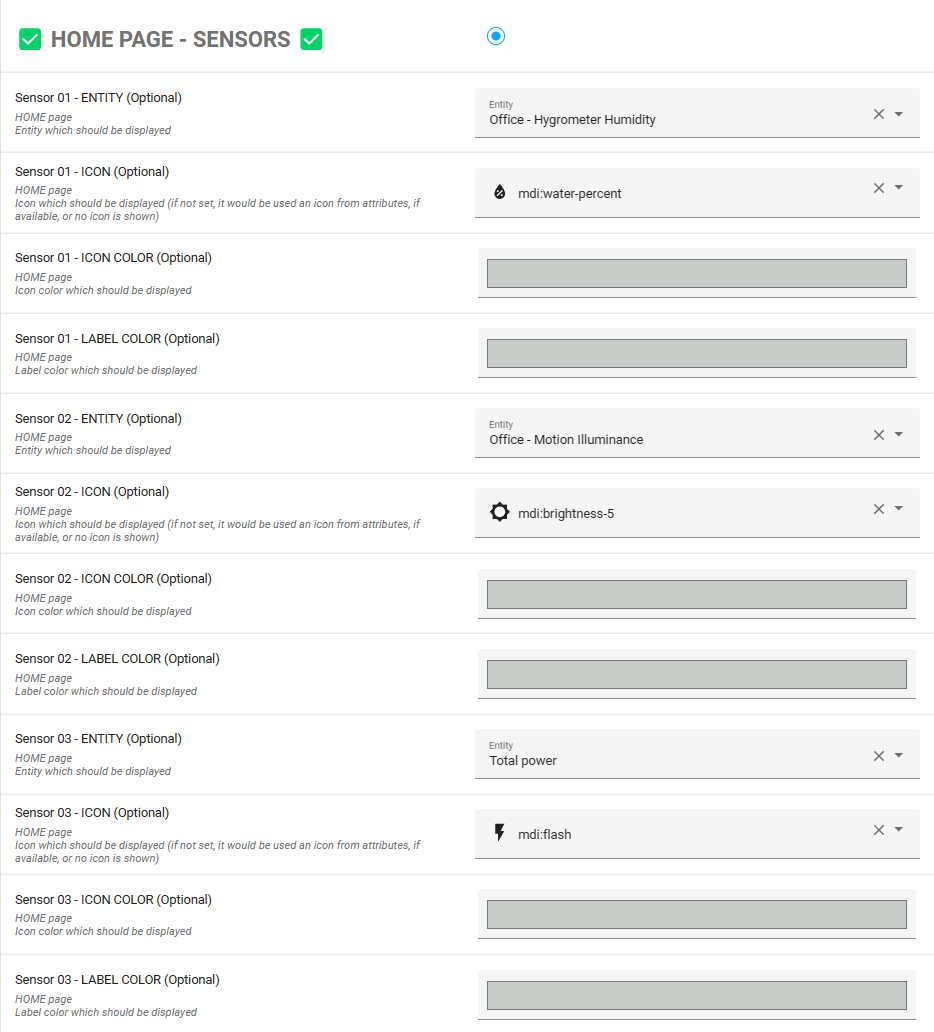
| Home page - Entity State 01-04 (Optional) | Up to four HA entities can be displayed on the home screen. | 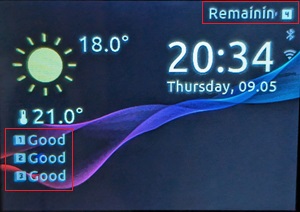 |
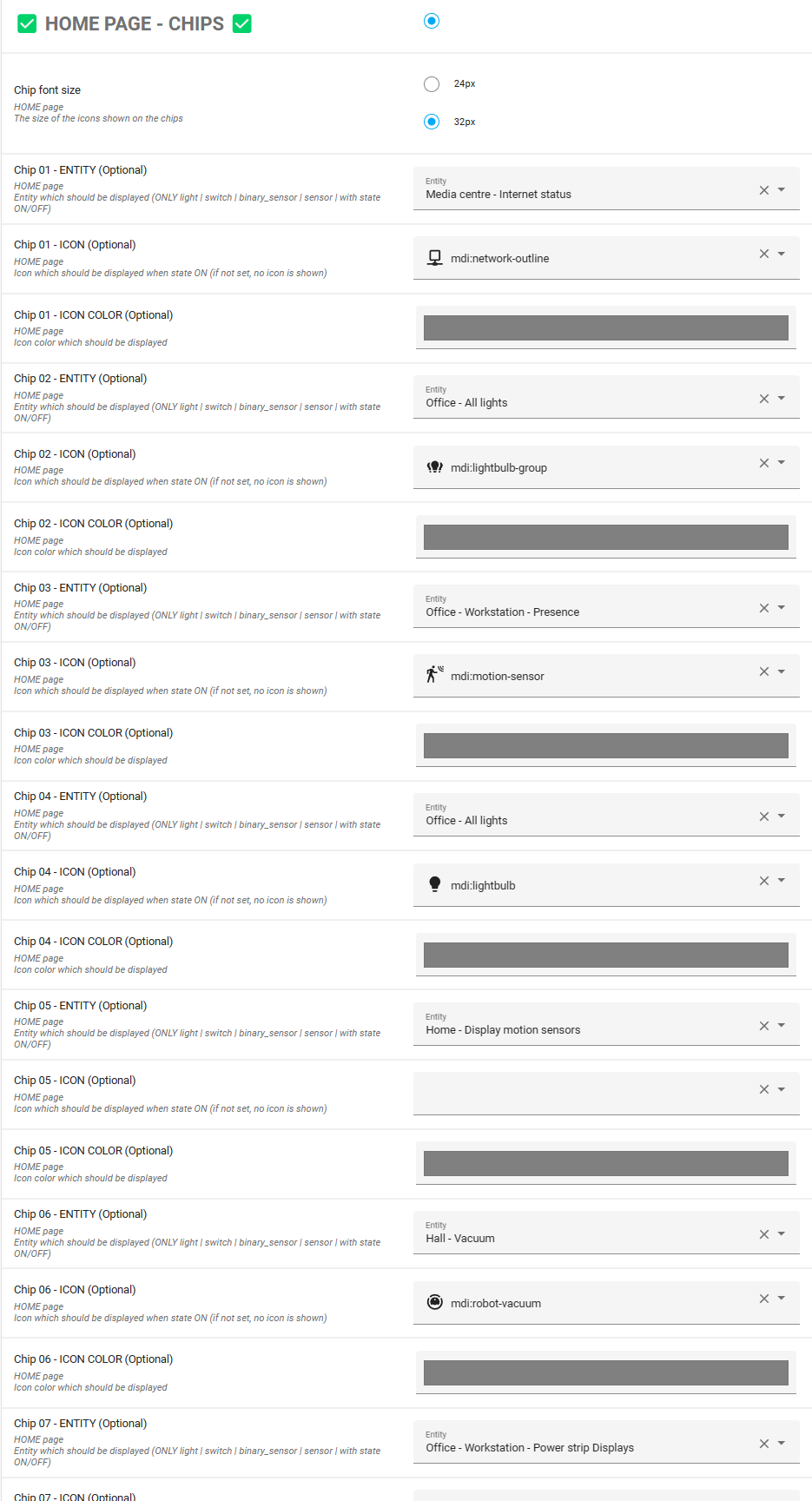
| Home page - Chips 01-07 (optional) | Used to display icons of HA binary entities on the home screen. The icon is displayed when the entity is on/open/true/active. Otherwise, no icon is displayed. | 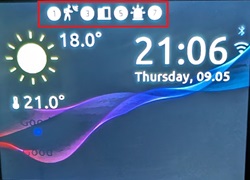 |
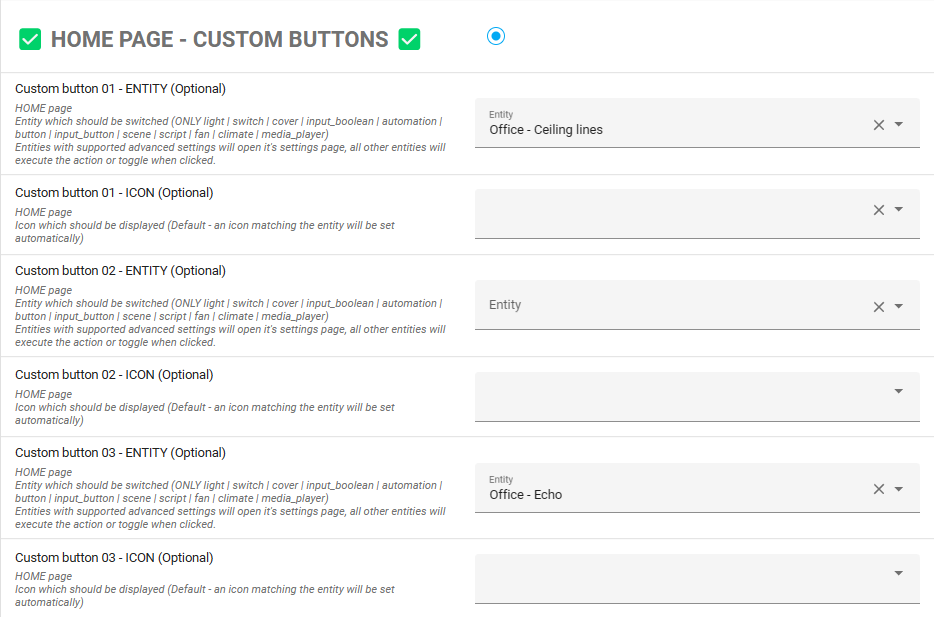
| Custom button 01-07 (Optional) | 7 custom buttons that can be assigned to different entities from your Home Assistant. The behavior of these buttons will depend on the entity’s domain, such as light, media player, etc. | 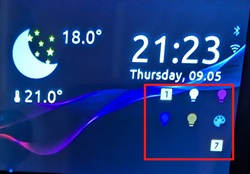 |
Alarm Control Panel
An alarm control panel entity can be controlled by your panel. When you assign the entity here, its icon will be shown as a button on the Home page.
Climate
Climate to Control (Optional)
Here you select the main climate entity controlled by your panel. Its temperature will be used on the Home page and by clicking on that value you will be able to control the climate settings.
You can optionally use your panel to control a climate system locally, using its temperature sensor and relays. You will find more details about this on the Add-on Climate documentation.
If you are using the climate add-on, it will create a climate entity in your panel’s device page. You still have to select that entity on this field in the blueprint settings to have it used as your main climate.
Additional climate entities can be assigned to buttons and will be explained later in this document.
On the blueprint settings, you will also find settings for sensors and custom buttons to be shown on all the climate pages.
When a climate entity supports preset modes (like eco, comfort or away), its climate page shows a preset button that opens a list with the available presets.
QR Code
Activate QR Code (Optional)
Activates the QR Code page and shows the QR Code button on the Home page.
QR Code content (Optional)
String, which is shown as a QR Code on the NSPanel. This can be a simple text, an URL or could also be used for a simplified login to the Wi-Fi. Here is an example (simply change SSID and password to your credentials and either use “WPA” or “WEP”):
WIFI:S:SSID;T:WPA/WEP;P:PASSWORD;;
Example
For a network with the following parameters:
- SSID: my_ssid
- Pass: MySecurePa$$w0rd
- Type: WPA
Your QR code string will look like this:
WIFI:S:my_ssid;T:WPA;P:MySecurePa$$w0rd;;
For more details about these specifications, please visit the WPA3™ Specification v3.1, chapter 7.
Hardware Buttons
Visibility Pages
Choose the pages where the bars, indicating the status of entities linked to hardware buttons, will be displayed.
By default, the bars are displayed only on the home page. If none of the selected pages is valid, the bars are displayed on the home page.
Labels Pages
Choose the pages where the labels of the hardware buttons will be displayed. Currently available: Home (default) and Screen saver (sleep) page. If none of the selected pages is valid, the labels are displayed on the home page. The labels are not visible on the US landscape model.
Activate Relay x local Fallback (Optional)
Normally, the internal relays of the NSPanels are triggered via HA. If the NSPanel loses Wi-Fi connection or HA is down, the hardware button can then switch the corresponding relay directly.
Left/Right Hardware Button - Entity (Optional)
The entity that should be switched with the left/right hardware button.
Left/Right Hardware Button - Label (Optional)
Label on the screen above the corresponding hardware button, shown on the pages selected in Labels Pages. It can show a text or an icon:
- Label type:
Text(default) shows the label text, andIconshows the label icon. - Label text: text shown when the label type is
Text(10 characters are supported). - Label icon: icon shown when the label type is
Icon, from the icon cheatsheet. If not set, the icon of the state indicator entity is used (or of the controlled entity, when no state indicator entity is set), falling back to its device class and domain icons. The icon is resolved when the panel syncs with the Blueprint, and does not change with the entity state.
While Home Assistant is not connected, the label is dimmed, as the button has no effect. This does not apply when the button controls its relay locally or with Activate Relay x local Fallback, as the button keeps working.
Left/Right Hardware Button hold assignment - VALUE (optional)
Selection of what action should happen when the button is pressed for a longer time.
Left/Right Hardware Button custom hold action - VALUE (Optional)
Selection of the action to start when holding the button.
Button Page 01-04
Button Page 01-04 name - LABEL (Optional)
Text on the respective button screens.
Buttons 01 - 32 (Optional)
The buttons can be accessed by swiping on the Home Screen and their functions are completely identical. Either the individual button pages can be accessed one after the other by swiping to the left, or the button pages can be accessed directly by swiping up, down or to the right.
The buttons are numbered as follows:
EU and US landscape models
| Button Page 1 | Button Page 2 | Button Page 3 | Button Page 4 | |
|---|---|---|---|---|
| Row 1 | 01 02 03 04 | 09 10 11 12 | 17 18 19 20 | 25 26 27 28 |
| Row 2 | 05 06 07 08 | 13 14 15 16 | 21 22 23 24 | 29 30 31 32 |
US model
| Button Page 1 | Button Page 2 | Button Page 3 | Button Page 4 | |
|---|---|---|---|---|
| Row 1 | 01 02 | 09 10 | 17 18 | 25 26 |
| Row 2 | 03 04 | 11 12 | 19 20 | 27 28 |
| Row 3 | 05 06 | 13 14 | 21 22 | 29 30 |
| Row 4 | 07 08 | 15 16 | 23 24 | 31 32 |
When the respective button is pressed, a toggle action is executed or the corresponding page is automatically opened, e.g. the cover control for covers, etc. For 2 state buttons (where toggle is the default action), a long press in the button will open it’s corresponding page, when supported.
For each button an own name can be specified optionally.
All buttons offer the possibility to optionally confirm the execution of the action. This can be activated or deactivated separately for each button via “Confirm execution of the button press”.
Entity Page 01-04
Activate Entity Page (Optional)
This option activates the entity pages on the Home Screen. The entity pages can be used for example to display values or statuses of entities on the individual pages.
Entity Page 01-04 name - LABEL (Optional)
Naming of the corresponding Entity Screens.
Entity 01 - 32 (Optional)
The entity pages can be accessed by pressing the symbol on the Home Screen and their functions are completely identical.
The entities are numbered as follows:
| Entity page | Entities shown |
|---|---|
| 1 | 01 to 08 |
| 2 | 09 to 16 |
| 3 | 17 to 24 |
| 4 | 25 to 32 |
Additionally there is the possibility to choose an icon of your choice for the Entities button on the Home page.
Of course there is also the possibility to enter a label for each of the 4 pages and the alignment for the values on the entities pages.
Versioning
Version check - Ignore older ESPHome firmware
By default, the Blueprint stops when the panel’s ESPHome firmware is older than the minimum version the Blueprint requires, because that firmware may not have registered all the API actions the Blueprint calls. This minimum only changes when a release makes the Blueprint depend on a newer firmware, so updating the Blueprint does not always require updating the firmware. Keeping all components on the same version is still recommended.
The firmware also reports its API version in every event it sends to Home Assistant. When the firmware has removed or changed API actions this Blueprint calls, the Blueprint stops and asks for a Blueprint update. This check cannot be bypassed, as the Blueprint would only call actions the firmware no longer supports.
Enable this option to keep the Blueprint running while you update your firmware. Features that need a newer firmware will not work until the update is completed, and the version mismatch notification is still created.
Custom actions for version mismatches (Optional)
For advanced users, the Blueprint can run your own actions when it detects a version mismatch. If these are left empty, nothing changes.
| Input | When it runs |
|---|---|
| ESPHome firmware outdated | The firmware is older than the Blueprint requires. Runs when the automations are reloaded (e.g. after a Blueprint re-import) or Home Assistant starts. |
| TFT file outdated | The TFT file is older than the firmware requires. Runs when the panel boots and reports its versions. |
| Blueprint outdated | The firmware requires a newer Blueprint. Runs when the panel boots and reports its versions. |
The Blueprint variables are available in your templates,
including blueprint_version, min_esphome_version_string, api_version, nspanel_name, nspanel_full_name and nspanel_deviceid.
The description of each input in the Blueprint lists the variables relevant to it.
These actions run inside the Blueprint, so an error stops the current run, and waits or delays hold it.
For long tasks, such as compiling and installing a new firmware, call a script with script.turn_on, which returns immediately:
action: script.turn_on
target:
  entity_id: script.nspanel_update_firmware
data:
  variables:
    panel: ""
    tag: "v"
[!NOTE] Release tags use the format
v<version>. To build the firmware from the same release as your Blueprint, reference the NSPanel Easy package with a substitution (e.g.ref: ${nspanel_easy_ref}, with a default such asnspanel_easy_ref: latestundersubstitutions:) and pass the tag when compiling:esphome -s nspanel_easy_ref v<version> compile <config>.yaml. Do not name this substitutionversion, as that name is already used by NSPanel Easy for the firmware version.
Screensaver
Wake-up sensors (Optional)
Binary sensors (like motion, occupancy, doors or windows) that wake up the panel when they turn On.
The panel is kept on while any of these sensors is On, and the dim and sleep timeouts start counting once all of them are Off.
While Home Assistant is disconnected, the sensors are ignored.
Advanced Settings
System settings - Decimal Separator
Choose the decimal separator for displaying numbers.
Delay to avoid synchronization problems
If the Wi-Fi signal is poor, you may have issues when loading some pages. If this happens, try to increase this delay as that may help.
Nextion TFT File Folder (Optional)
Specify the path to the folder containing the Nextion TFT file. This is to be used together with the option nextion_upload_tft on the “Update TFT Display - Model” option on the device’s page.
Example Screenshots