NSPanel-Easy
Alarm Control Panel
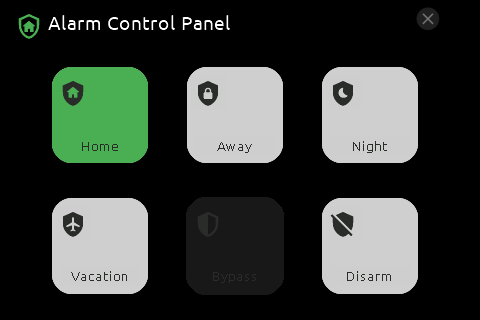
You can control an Alarm Control Panel from your NSPanel, which allows you to set the alarm mode to standard modes supported by Home Assistant (Home, Away, Night, Vacation, or Custom bypass) or disarm the alarm.
Currently, the NSPanel supports alarms without a code or with a numeric code. For alarms using a text code, the NSPanel will display it, but interactions (like button clicks) will send action calls to Home Assistant without the code, leading to failed operations that require a code.
[!IMPORTANT] Security advisory The default communication between your NSPanel (ESPHome) and Home Assistant (HA) is not encrypted. This could allow someone with network access to monitor and replicate the action calls. This risk is particularly relevant when controlling your alarm system.
To enhance security, we strongly recommend enabling API encryption for NSPanel users managing an Alarm system. Follow the instructions in the “API encryption” example here to implement this security measure.
Configuration
Allow the device to perform Home Assistant actions
First, you need to configure your Home Assistant to permit your NSPanel to perform actions. While most actions are handled via the Blueprint, ESPHome needs to send events with all necessary data in plain text for these action calls. To mitigate any security risks, alarm-related calls are managed directly by the panel.
To enable this:
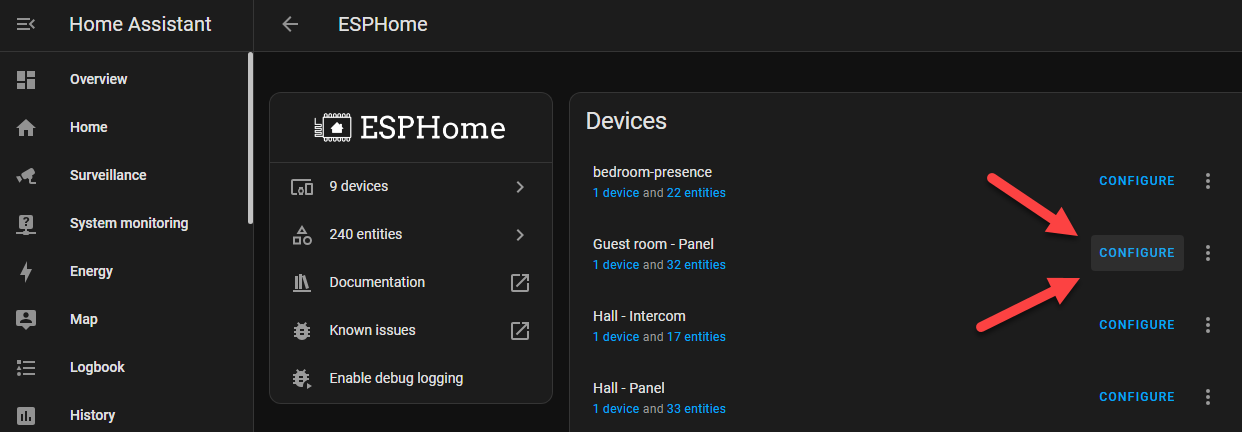
- Go to your ESPHome integrations panel (Settings > Devices and services > ESPHome).
-
Click “Configure” next to your panel’s entry.
-
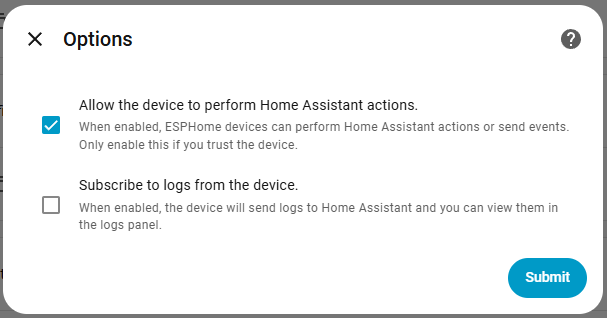
Select the “Allow the device to perform Home Assistant actions” option.
Blueprint settings
To assign Alarm Control Panel entities to buttons:
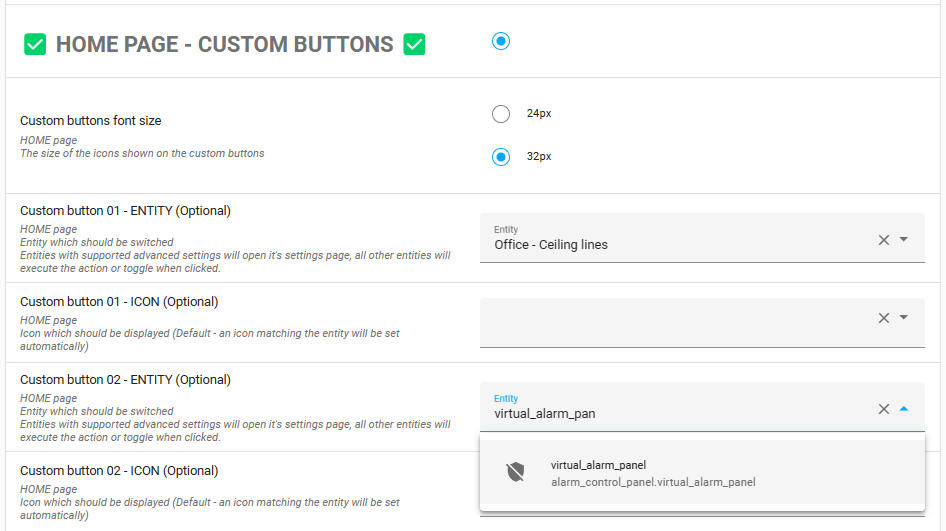
- Open the NSPanel Blueprint automation.
- Find the button configuration section.
- Choose a button and select your alarm control panel entity.
-
Click “Save” to complete setup.
Follow these steps to ensure your NSPanel is correctly configured for controlling your alarm system.
Controlling your alarm from your panel
When an alarm control panel is configured in your Blueprint automation, the alarm icon appears on your NSPanel’s Home page or the respective button page. This icon changes based on the alarm state, detailed in the following table.
Clicking this button opens the Alarm Control Panel page. Here, you can adjust alarm settings with a single click or return to the Home page.
Description of states shown with the alarm icon
State | Color | Icon | Icon Name | Description
– | – | – | – | –
disarmed | White |  | mdi:shield-off-outline | Disarmed and not actively monitoring for intrusions.
armed_home | Green |
| mdi:shield-off-outline | Disarmed and not actively monitoring for intrusions.
armed_home | Green |  | mdi:shield-home-outline | Armed in home mode, protecting selected areas while occupants are present.
armed_away | Green |
| mdi:shield-home-outline | Armed in home mode, protecting selected areas while occupants are present.
armed_away | Green |  | mdi:shield-lock-outline | Armed in away mode, protecting all configured zones while the home is unoccupied.
armed_night | Green |
| mdi:shield-lock-outline | Armed in away mode, protecting all configured zones while the home is unoccupied.
armed_night | Green |  | mdi:shield-moon-outline | Armed in night mode, typically protecting perimeter and selected zones during sleep.
armed_vacation | Green |
| mdi:shield-moon-outline | Armed in night mode, typically protecting perimeter and selected zones during sleep.
armed_vacation | Green |  | mdi:shield-airplane-outline | Armed in vacation mode for extended absences, often with enhanced or modified protection rules.
armed_custom_bypass | Green |
| mdi:shield-airplane-outline | Armed in vacation mode for extended absences, often with enhanced or modified protection rules.
armed_custom_bypass | Green |  | mdi:shield-half-full | Armed with custom bypass rules, allowing specific sensors or zones to be excluded.
pending | Amber |
| mdi:shield-half-full | Armed with custom bypass rules, allowing specific sensors or zones to be excluded.
pending | Amber |  | mdi:shield-outline | Countdown in progress after activity is detected, before triggering.
arming | Amber | | mdi:shield-outline | Exit delay in progress while the system is arming.
disarming | Amber |
| mdi:shield-outline | Countdown in progress after activity is detected, before triggering.
arming | Amber | | mdi:shield-outline | Exit delay in progress while the system is arming.
disarming | Amber |  | mdi:shield-off-outline | Entry delay in progress while the system is disarming.
triggered | Red |
| mdi:shield-off-outline | Entry delay in progress while the system is disarming.
triggered | Red |  | mdi:shield-alert-outline | Actively triggered and in an alert state.
unknown/unavailable | White |
| mdi:shield-alert-outline | Actively triggered and in an alert state.
unknown/unavailable | White |  | mdi:shield-alert-outline | State unknown or unavailable, typically due to a communication or system issue.
[!NOTE] The availability, behavior, and exact semantics of these states depend on the alarm system integration used in Home Assistant. Not all systems support all states, and the meaning of each mode may vary according to the integration’s configuration.